
Power BI MCP Setup Checklist: A Complete Configuration Guide for Enterprise Teams
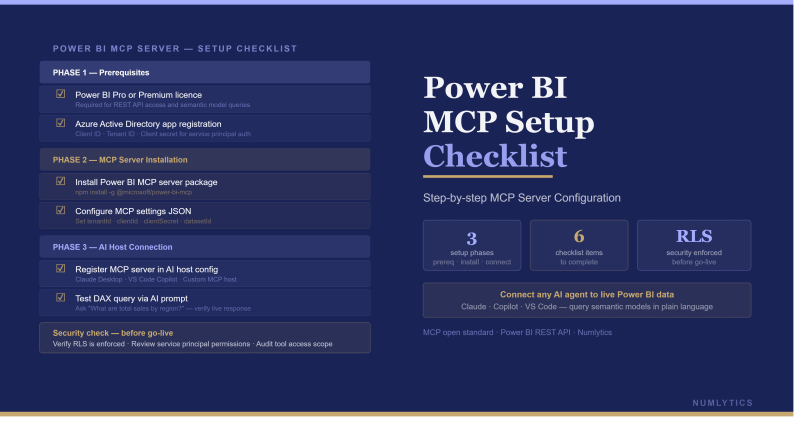
The Power BI MCP setup checklist every prerequisite, configuration step, validation test, and optimisation consideration for a production-ready MCP deployment.
This is the third post in the Numlytics Power BI MCP series. The first post covered the MCP architecture and both server types; the second post explored the Modeling MCP developer workflow in depth. This post is the practical complement: a sequenced setup checklist covering every prerequisite, installation step, AI client configuration, validation check, and optimisation consideration needed to get a Power BI MCP setup running correctly in an enterprise environment.
"A checklist is not a substitute for understanding but it is the difference between a reliable setup and one that works until it doesn't. Follow each phase in sequence; skipping prerequisites is the most common source of setup failures."
Phase 1 - Prerequisites and Environment Check
Before installing either MCP server, verify that all prerequisites are in place. Setting up the servers without completing this phase is the primary cause of authentication failures and tool discovery errors that are difficult to diagnose after the fact.
app.powerbi.com before proceeding.node --version in a terminal. If Node.js is not installed, download it from nodejs.org. The npm package manager is included with Node.js.api.powerbi.com, login.microsoftonline.com, and analysis.windows.net are accessible without TLS interception from the developer machine.Phase 2 - Modeling MCP Server Setup
The Modeling MCP Server connects to a local Power BI Desktop session via the Analysis Services local endpoint that Power BI Desktop exposes when a model is open. Complete the following steps in order.
npm install -g @microsoft/powerbi-modeling-mcp
.pbix file is open. Open a .pbix file before starting the MCP server. The server connects to the local AS port dynamically — the model must be open and loaded for the connection to succeed.localhost:<port>. Alternatively, check the Power BI Desktop diagnostic logs at %LOCALAPPDATA%\Microsoft\Power BI Desktop\Traces for the port number.<port> with the Analysis Services port identified in the previous step. The server listens on stdio by default, which is the transport required by most MCP clients including Claude Desktop and VS Code extensions.powerbi-modeling-mcp --port <port>
Phase 3 - Remote MCP Server Setup
The Remote MCP Server connects to published datasets in the Power BI Service and to Fabric data sources via the REST API and XMLA endpoint. It runs as a local process that the AI client communicates with, but the data access is cloud-side via the Power BI Service.
npm install -g @microsoft/powerbi-remote-mcp
powerbi-remote-mcp
Phase 4 - AI Client Configuration
Once the MCP servers are running, configure the AI client to connect to them. The configuration method varies by client. The two most common configurations for enterprise Power BI development are Claude Desktop and GitHub Copilot in VS Code.
Claude Desktop Configuration
Claude Desktop stores its MCP server configuration in a JSON file at %APPDATA%\Claude\claude_desktop_config.json (Windows) or ~/Library/Application Support/Claude/claude_desktop_config.json (macOS). Add the following entries to the mcpServers object in the configuration file, then restart Claude Desktop.
{
  "mcpServers": {
    "powerbi-modeling": {
      "command": "powerbi-modeling-mcp",
      "args": ["--port", "<your-AS-port>"]
    },
    "powerbi-remote": {
      "command": "powerbi-remote-mcp",
      "args": []
    }
  }
}
GitHub Copilot in VS Code Configuration
GitHub Copilot's MCP server support in VS Code is configured through the workspace or user settings.json. Add the following to the relevant settings.json file to register both servers. After saving, reload the VS Code window and the servers will appear in the GitHub Copilot agent tool list.
"github.copilot.chat.mcp.servers": {
  "powerbi-modeling": {
    "command": "powerbi-modeling-mcp",
    "args": ["--port", "<your-AS-port>"],
    "transport": "stdio"
  },
  "powerbi-remote": {
    "command": "powerbi-remote-mcp",
    "args": [],
    "transport": "stdio"
  }
}
Phase 5 - Validation Tests
After completing the setup and client configuration, run these validation tests to confirm that each server is operating correctly before using it in a development workflow.
| Validation Test | Expected Result | Server |
|---|---|---|
| Ask agent to list all tables in the connected model | Returns the actual table names from the open .pbix file — not generic names | Modeling MCP |
| Ask agent to list all measures in the model | Returns the complete measure list with table assignments matching the open model | Modeling MCP |
| Ask agent to show the DAX for a specific named measure | Returns the exact DAX expression defined in the model for that measure | Modeling MCP |
| Ask agent to list Power BI workspaces accessible to the account | Returns a list of workspaces visible to the authenticated user in the Power BI Service | Remote MCP |
| Ask agent to list datasets in a named workspace | Returns datasets matching what is visible in that workspace in the Power BI Service | Remote MCP |
| Ask agent to run a simple DAX query against a named dataset | Returns the query result verify the values match what Power BI reports for the same measure | Remote MCP |
Common Errors and How to Resolve Them
"Unable to connect to local Analysis Services endpoint" This error from the Modeling MCP Server means Power BI Desktop is not running or no model is currently open. Ensure a .pbix file is open and loaded in Power BI Desktop before starting the server. Also verify that the port number passed to the server matches the actual AS port by cross-checking with DAX Studio.
"Authentication failed: no valid token" This Remote MCP error indicates the OAuth device code flow was not completed, the cached token has expired, or the Entra ID account does not have consent for the required scopes. Delete any cached token files in the server's data directory and restart the server to initiate a fresh authentication flow. If consent errors persist, contact the Entra ID administrator to grant the required Power BI API permissions to the user account.
"Tool not found" or empty tool list in AI client The AI client cannot discover the MCP server's tools, which typically means the client configuration is pointing to an incorrect command path or the server process failed to start. Verify the server is running by checking for its process in Task Manager or using ps aux | grep mcp. Re-check the configuration file path and JSON syntax — a malformed JSON configuration file silently prevents server registration in Claude Desktop.
"Access denied" on Power BI REST API calls (Remote MCP) — The authenticated user does not have the required permissions on the target workspace or dataset. Verify that the account has at least Viewer role on the workspace in the Power BI Service. For operations that require dataset refresh or write access, Contributor or higher is required.
Phase 6 - Optimisation and Best Practices
With both servers validated, apply these optimisation practices before integrating the setup into regular development workflows.
Create a startup script. Starting the Modeling MCP Server requires knowing the current Analysis Services port, which changes each time Power BI Desktop is restarted. Create a simple batch or shell script that uses DAX Studio's command-line interface or the Windows Management Instrumentation (WMI) to detect the current AS port automatically and pass it to the server start command. This eliminates the manual port lookup step from the daily workflow.
Scope the AI client's MCP access by workspace. If the Remote MCP Server is used primarily for a specific set of workspaces, configure the AI client's system prompt to specify which workspace the agent should focus on. This prevents the agent from querying across all accessible workspaces unnecessarily and reduces the risk of cross-workspace data access that may be unintended.
Refresh token management. The Remote MCP Server caches the OAuth access token and refreshes it automatically using the refresh token. The refresh token typically expires after 90 days of inactivity. For development environments where the server is not used daily, add a reminder to the team calendar to authenticate every 60 days to prevent token expiry disrupting a workflow at a critical moment.
Log MCP server activity. Both servers support verbose logging via a debug flag. Enable this during initial validation to capture the full request/response trace between the AI client and the server it is invaluable for diagnosing unexpected agent behaviour and confirming that the agent is calling the tools with the correct parameters.
- Complete all Phase 1 prerequisites before installation authentication failures and tool discovery errors almost always trace back to skipped prerequisite checks.
- The Modeling MCP Server requires a .pbix file open in Power BI Desktop and the correct Analysis Services local port number the port changes on every restart, so a port detection script pays dividends quickly.
- The Remote MCP Server's first-run OAuth device code flow must be completed interactively the token is then cached for subsequent runs, but expires after approximately 90 days of inactivity.
- Claude Desktop configuration is in claude_desktop_config.json; GitHub Copilot in VS Code uses settings.json — both require valid JSON and a restart to apply changes.
- The six validation tests confirm live connection to the correct model (Modeling MCP) and the correct Power BI Service account (Remote MCP) run all six before declaring the setup production-ready.
- A startup script for automatic AS port detection and a 60-day token refresh reminder are the two optimisations that most reduce day-to-day setup friction for active development teams.
Enterprise Rollout Considerations
For organisations rolling out Power BI MCP setup across a development team rather than for a single developer, several additional considerations apply.
Package version pinning specifying the exact npm package version in team documentation and onboarding scripts ensures that all team members are running the same server version and that updates are applied deliberately rather than silently with the next npm install. Breaking changes in MCP server versions can produce confusing tool behaviour changes that are difficult to diagnose when different team members are running different versions.
Centralised AI client configuration management using VS Code settings sync, a shared settings repository, or a workspace-level .vscode/settings.json committed to the team's Git repository ensures that new team members receive the correct MCP server configuration as part of their environment setup rather than needing to configure it manually from documentation.
If your organisation is deploying Power BI MCP across multiple development teams or needs assistance designing the governance framework for AI agent access to Power BI semantic models and Fabric data, speak with a certified Power BI consultant at Numlytics. We work with enterprise analytics teams across the US, UK, Australia, and UAE to implement AI-augmented development practices that are productive, governed, and aligned with enterprise security requirements.